2.2.3 ファイル操作とシリアライズ
この節の位置づけ
この節では、プログラムのデータを保存して、あとで読み戻せるようにします。ファイルの読み書き、CSV、JSON、そしてシリアライズは、データセット処理、学習ログ、設定ファイル、モデル結果の保存の基礎です。メモリ上の一時的なコードから実際のプロジェクトへ進むための、大事な一歩でもあります。
学習目標
- ファイルの読み書き操作(
open、read、write)を身につける with文の役割と利点を理解する- CSV、JSON などのよく使うデータ形式を扱えるようになる
- シリアライズとデシリアライズの概念を理解する
なぜファイル操作が必要なの?
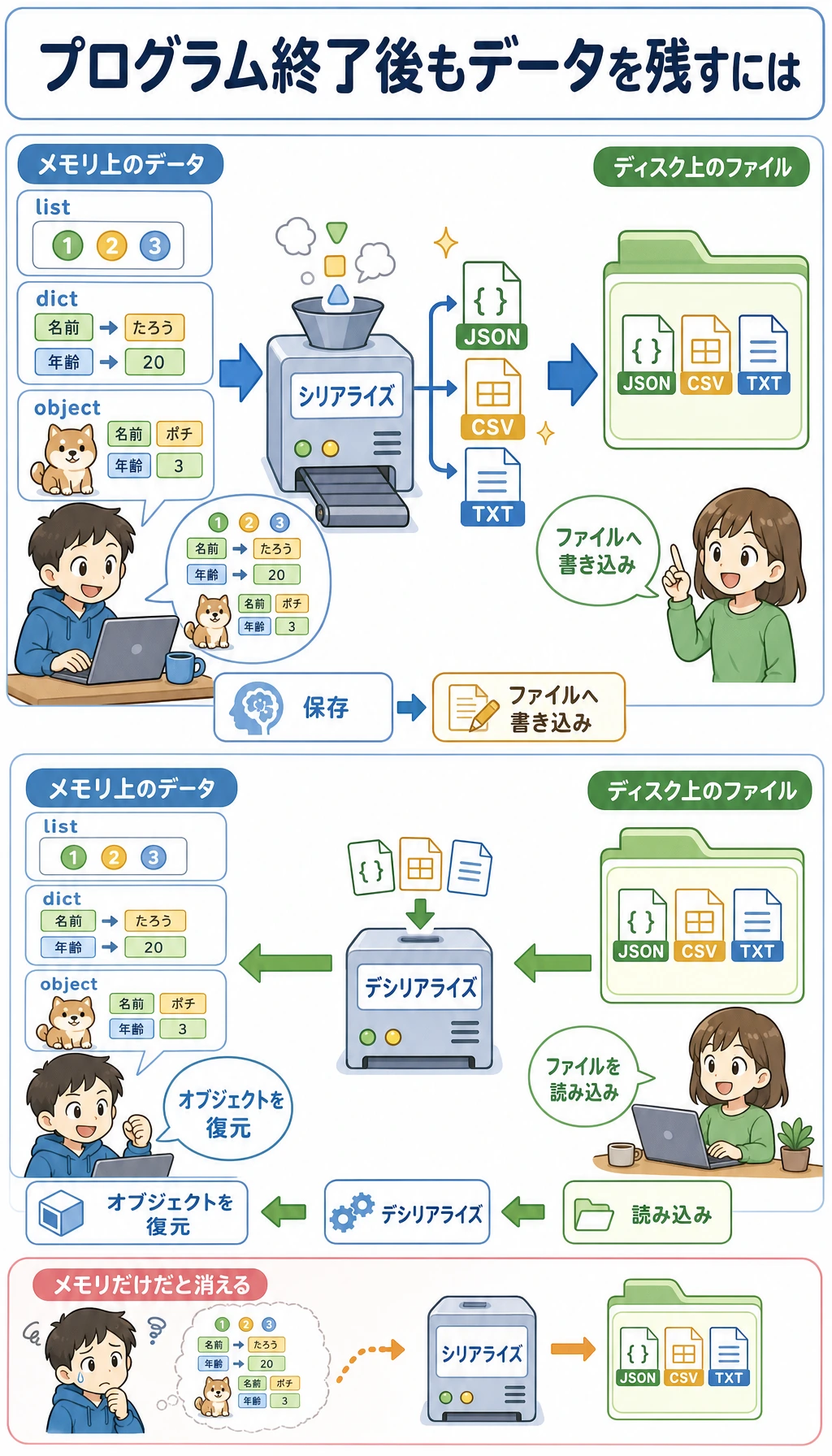
ここまで、プログラムのデータはすべてメモリの中にありました。つまり、プログラムを終了するとデータは消えてしまいます。でも実際の場面では、次のようなことがあります。
- 学習済みの AI モデルをファイルに保存して、次回すぐ読み込む
- データセットが CSV ファイルにあり、プログラムで読み込む必要がある
- 学習ログをファイルに書き出して、あとで分析する
- 設定パラメータが JSON ファイルにあり、起動時に読み込む
ファイル操作は、プログラムでデータを永続的に保存できるようにするためのものです。
ファイルの読み書きの基本
ファイルを開く: open()
# 基本構文
file = open("ファイルパス", "モード", encoding="エンコーディング")
よく使うモード:
| モード | 意味 | ファイルが存在しない場合 |
|---|---|---|
"r" | 読み込み(デフォルト) | エラー |
"w" | 書き込み(上書き) | 自動作成 |
"a" | 追記(末尾に追加) | 自動作成 |
"x" | 新規作成(すでにあるとエラー) | 自動作成 |
"rb" | バイナリファイルを読み込む | エラー |
"wb" | バイナリファイルに書き込む | 自動作成 |
ファイルに書き込む
# 方法 1: 手動で開いて閉じる(おすすめしない)
file = open("hello.txt", "w", encoding="utf-8")
file.write("こんにちは、世界!\n")
file.write("Python のファイル操作を学習中です。\n")
file.close()  # ファイルを閉じるのを忘れないでください!

# 方法 2: with 文を使う(おすすめ!)
with open("hello.txt", "w", encoding="utf-8") as file:
    file.write("こんにちは、世界!\n")
    file.write("Python のファイル操作を学習中です。\n")
# with ブロックを抜けると、ファイルは自動で閉じられます。close() は不要です。
with 文には 2 つの利点があります。
- ファイルを自動で閉じる —
close()を忘れる心配がない - 例外に強い — コードでエラーが起きても、ファイルは正しく閉じられる
これからはファイル操作を書くとき、必ず with を使いましょう。
ファイルを読む
# 全内容を読む
with open("hello.txt", "r", encoding="utf-8") as file:
    content = file.read()
    print(content)

# 1行ずつ読む
with open("hello.txt", "r", encoding="utf-8") as file:
    for line in file:
        print(line.strip())  # strip() は行末の改行を取り除く

# すべての行をリストとして読む
with open("hello.txt", "r", encoding="utf-8") as file:
    lines = file.readlines()
    print(lines)  # ['こんにちは、世界!\n', 'Python のファイル操作を学習中です。\n']
内容を追記する
# "a" モード: ファイル末尾に追記し、元の内容は上書きしない
with open("log.txt", "a", encoding="utf-8") as file:
    file.write("2026-02-09: 学習開始\n")
    file.write("2026-02-09: 第1章完了\n")
複数行を書き込む
lines = ["1行目\n", "2行目\n", "3行目\n"]

with open("output.txt", "w", encoding="utf-8") as file:
    file.writelines(lines)  # 文字列のリストを書き込む

# あるいは print でファイルに書き込む
with open("output.txt", "w", encoding="utf-8") as file:
    print("1行目", file=file)  # print は出力先をファイルに指定できる
    print("2行目", file=file)
    print("3行目", file=file)
実践例: さまざまなファイル形式を扱う
CSV ファイル
CSV(Comma-Separated Values)は、最もよく使われるデータファイル形式の1つです。
import csv

# CSV に書き込む
students = [
    ["名前", "年齢", "成績"],
    ["山田太郎", 20, 85],
    ["佐藤花子", 21, 92],
    ["鈴木一郎", 19, 78],
]

with open("students.csv", "w", newline="", encoding="utf-8") as file:
    writer = csv.writer(file)
    writer.writerows(students)

# CSV を読み込む
with open("students.csv", "r", encoding="utf-8") as file:
    reader = csv.reader(file)
    header = next(reader)  # 見出しを読む
    print(f"列名: {header}")

    for row in reader:
        name, age, score = row
        print(f"{name}, {age}歳, 成績: {score}")

# 辞書として読み込む(より便利)
with open("students.csv", "r", encoding="utf-8") as file:
    reader = csv.DictReader(file)
    for row in reader:
        print(f"{row['名前']} の成績は {row['成績']} です")
JSON ファイル
JSON は Web 開発や API で最もよく使われるデータ形式です。
import json

# JSON に書き込む
config = {
    "model": "ResNet-50",
    "learning_rate": 0.001,
    "epochs": 100,
    "batch_size": 32,
    "classes": ["猫", "犬", "鳥"],
    "use_gpu": True
}

with open("config.json", "w", encoding="utf-8") as file:
    json.dump(config, file, ensure_ascii=False, indent=2)

# JSON を読み込む
with open("config.json", "r", encoding="utf-8") as file:
    loaded_config = json.load(file)

print(f"モデル: {loaded_config['model']}")
print(f"学習率: {loaded_config['learning_rate']}")
print(f"クラス: {loaded_config['classes']}")
生成された config.json の内容:
{
  "model": "ResNet-50",
  "learning_rate": 0.001,
  "epochs": 100,
  "batch_size": 32,
  "classes": ["猫", "犬", "鳥"],
  "use_gpu": true
}
デフォルトでは、json.dump() は日本語や中国語などの文字を Unicode エンコーディング(例: \u732b)に変換します。ensure_ascii=False を付けると文字をそのまま残せるので、ファイルが読みやすくなります。
テキストログファイル
from datetime import datetime

def log(message, filename="app.log"):
    """ログを書き込む"""
    timestamp = datetime.now().strftime("%Y-%m-%d %H:%M:%S")
    with open(filename, "a", encoding="utf-8") as file:
        file.write(f"[{timestamp}] {message}\n")

# 使い方
log("プログラムを起動しました")
log("データセットを読み込みました: train.csv")
log("モデルの学習を開始しました")
log("学習完了、正解率: 92.5%")
生成されたログファイル:
[2026-02-09 14:30:01] プログラムを起動しました
[2026-02-09 14:30:02] データセットを読み込みました: train.csv
[2026-02-09 14:30:03] モデルの学習を開始しました
[2026-02-09 14:35:15] 学習完了、正解率: 92.5%
パスの扱い: pathlib
pathlib は Python 3 で推奨されるパス操作の方法です。os.path よりも現代的で、使いやすいです。
from pathlib import Path

# パスオブジェクトを作る
data_dir = Path("data")
train_file = data_dir / "train" / "data.csv"  # / でパスをつなげる!
print(train_file)  # data/train/data.csv

# パスを確認する
print(train_file.exists())    # ファイルが存在するか
print(train_file.is_file())   # ファイルかどうか
print(data_dir.is_dir())      # ディレクトリかどうか

# ファイル情報を取得する
path = Path("model.pth")
print(path.name)       # model.pth(ファイル名)
print(path.stem)       # model(拡張子なし)
print(path.suffix)     # .pth(拡張子)
print(path.parent)     # .(親ディレクトリ)

# ディレクトリを作成する
Path("output/results").mkdir(parents=True, exist_ok=True)

# ディレクトリ内のファイルを一覧表示する
for file in Path(".").glob("*.py"):
    print(file)

# すべての CSV ファイルを再帰的に探す
for csv_file in Path("data").rglob("*.csv"):
    print(csv_file)

# ファイルを手軽に読み書きする
Path("note.txt").write_text("Hello!", encoding="utf-8")
content = Path("note.txt").read_text(encoding="utf-8")
print(content)  # Hello!
シリアライズ: Python オブジェクトを保存する
シリアライズとは?
シリアライズとは、Python オブジェクト(リスト、辞書、クラスのインスタンスなど)を、ファイルに保存できる形式に変換することです。デシリアライズはその逆で、ファイルから Python オブジェクトに戻すことです。
| 形式 | モジュール | 可読性 | 速度 | 安全性 | 利用シーン |
|---|---|---|---|---|---|
| JSON | json | ✅ 高い | 中程度 | ✅ 安全 | 設定ファイル、API データ |
| CSV | csv | ✅ 高い | 速い | ✅ 安全 | 表形式データ |
| pickle | pickle | ❌ バイナリ | 速い | ❌ 安全でない | Python オブジェクト |
pickle: さまざまな Python オブジェクトを保存する
import pickle

# Python オブジェクトを保存する
data = {
    "scores": [85, 92, 78, 95],
    "names": ["山田太郎", "佐藤花子", "鈴木一郎", "田中次郎"],
    "metadata": {"class": "A組", "year": 2026}
}

with open("data.pkl", "wb") as file:  # "wb"(バイナリ書き込み)に注意
    pickle.dump(data, file)

# Python オブジェクトを読み込む
with open("data.pkl", "rb") as file:  # "rb"(バイナリ読み込み)に注意
    loaded_data = pickle.load(file)

print(loaded_data["names"])  # ['山田太郎', '佐藤花子', '鈴木一郎', '田中次郎']
信頼できない来源の pickle ファイルは、絶対に読み込まないでください! pickle は任意のコードを実行できるため、悪意のある pickle ファイルはあなたのコンピュータ上で危険な操作を実行する可能性があります。自分で作成したもの、または信頼できるソースからの pickle ファイルだけを読み込みましょう。
総合例: 学生成績管理システム
import json
from pathlib import Path
from datetime import datetime

class GradeBook:
    """成績管理システム。ファイルへの永続保存をサポートする"""

    def __init__(self, filename="gradebook.json"):
        self.filename = Path(filename)
        self.students = {}
        self.load()  # 起動時にデータを読み込む

    def load(self):
        """ファイルからデータを読み込む"""
        if self.filename.exists():
            with open(self.filename, "r", encoding="utf-8") as f:
                self.students = json.load(f)
            print(f"✅ {len(self.students)} 人の学生データを読み込みました")
        else:
            print("📝 新しい成績簿を作成します")

    def save(self):
        """データをファイルに保存する"""
        with open(self.filename, "w", encoding="utf-8") as f:
            json.dump(self.students, f, ensure_ascii=False, indent=2)

    def add_score(self, name, subject, score):
        """成績を追加する"""
        if name not in self.students:
            self.students[name] = {}
        self.students[name][subject] = score
        self.save()
        print(f"✅ {name} の {subject} の成績({score}点)を保存しました")

    def get_report(self, name):
        """学生のレポートを取得する"""
        if name not in self.students:
            print(f"❌ 学生が見つかりません: {name}")
            return

        scores = self.students[name]
        print(f"\n{'='*30}")
        print(f"  {name} の成績レポート")
        print(f"{'='*30}")
        for subject, score in scores.items():
            print(f"  {subject}: {score} 点")
        avg = sum(scores.values()) / len(scores)
        print(f"{'─'*30}")
        print(f"  平均点: {avg:.1f}")
        print(f"{'='*30}")

    def export_csv(self, filename="grades.csv"):
        """CSV としてエクスポートする"""
        import csv
        subjects = set()
        for scores in self.students.values():
            subjects.update(scores.keys())
        subjects = sorted(subjects)

        with open(filename, "w", newline="", encoding="utf-8") as f:
            writer = csv.writer(f)
            writer.writerow(["名前"] + subjects)
            for name, scores in self.students.items():
                row = [name] + [scores.get(s, "") for s in subjects]
                writer.writerow(row)
        print(f"✅ {filename} にエクスポートしました")

# 使用例
gb = GradeBook()
gb.add_score("山田太郎", "数学", 85)
gb.add_score("山田太郎", "英語", 92)
gb.add_score("山田太郎", "Python", 95)
gb.add_score("佐藤花子", "数学", 78)
gb.add_score("佐藤花子", "英語", 88)
gb.get_report("山田太郎")
gb.export_csv()
ハンズオン練習
練習 1: ファイル統計ツール
from pathlib import Path

def file_stats(filename):
    """行数、文字数、単語数、最長行の情報を返す。"""
    path = Path(filename)
    lines = path.read_text(encoding="utf-8").splitlines()
    longest_index, longest_line = max(
        enumerate(lines, start=1),
        key=lambda item: len(item[1]),
        default=(0, ""),
    )
    return {
        "lines": len(lines),
        "characters": sum(len(line) for line in lines),
        "words": sum(len(line.split()) for line in lines),
        "longest_line_number": longest_index,
        "longest_line": longest_line,
    }

Path("sample.txt").write_text("hello world\nthis is Python\n", encoding="utf-8")
print(file_stats("sample.txt"))
練習 2: 日記帳プログラム
次の機能を持つ、シンプルな日記帳プログラムを作りましょう。
- 新しい日記を書く(自動でタイムスタンプを付ける)
- すべての日記を見る
- 日記はテキストファイルに保存し、プログラムを閉じても消えない
練習 3: 設定ファイルマネージャー
import json
from pathlib import Path

DEFAULT_CONFIG = {"theme": "light", "language": "ja", "page_size": 20}

def load_config(filename="config.json"):
    """設定ファイルを読み込む。存在しない場合はデフォルト設定を作る。"""
    path = Path(filename)
    if not path.exists():
        save_config(DEFAULT_CONFIG.copy(), filename)
    return json.loads(path.read_text(encoding="utf-8"))

def save_config(config, filename="config.json"):
    """設定をファイルに保存する。"""
    Path(filename).write_text(json.dumps(config, indent=2), encoding="utf-8")

def update_config(key, value, filename="config.json"):
    """特定の設定項目を更新する。"""
    config = load_config(filename)
    config[key] = value
    save_config(config, filename)
    return config

print(update_config("theme", "dark"))
まとめ
| 操作 | コード | 説明 |
|---|---|---|
| ファイルに書き込む | with open("f.txt", "w") as f: | "w" は上書き、"a" は追記 |
| ファイルを読む | with open("f.txt", "r") as f: | .read()、.readlines() |
| JSON に書き込む | json.dump(data, file) | 辞書 → JSON ファイル |
| JSON を読む | json.load(file) | JSON ファイル → 辞書 |
| CSV に書き込む | csv.writer(file).writerow() | リスト → CSV 行 |
| CSV を読む | csv.reader(file) | CSV 行 → リスト |
| パス操作 | Path("data") / "file.txt" | pathlib の使用がおすすめ |
ファイル操作によって、プログラムに「記憶」が生まれます。つまり、データをプログラムの実行をまたいで残せるようになります。AI 開発では、データセット(CSV)、設定(JSON/YAML)、モデル重み(.pth)、学習ログ(.log)など、さまざまなファイルを頻繁に読み書きします。ファイル操作を身につけることは、開発者としての基本スキルです。